How to Embed Google Reviews on Your Zibster Website
Overview
Displaying Google reviews on your website can help build trust with visitors and show real feedback from your customers. Google Business Profile does not provide a built-in website widget for displaying reviews, so you will need to use a third-party Google Reviews widget provider.
This guide walks you through how to create a Google Reviews widget, copy the embed code, and add it to your Zibster website using an HTML Block. Once added, your reviews can display directly on your website.
If you prefer to manually choose which reviews appear on your website, you may want to create a testimonials page instead.
Prerequisites
Before you begin, you will need access to a third-party Google Reviews widget provider. The provider you choose will generate the embed code you need to add to your website.
Common third-party widget providers include:
Zibster does not control third-party widget providers, their pricing, or how their widgets display. If you need help creating or editing the widget itself, contact the widget provider directly.
STEP ONE
Log into the third-party widget provider you want to use and create your Google Reviews widget.
Follow the provider’s setup steps to connect your Google Business Profile, choose your widget layout, and customize how your reviews will appear. Once the widget is ready, copy the embed code provided by the widget service.
STEP TWO
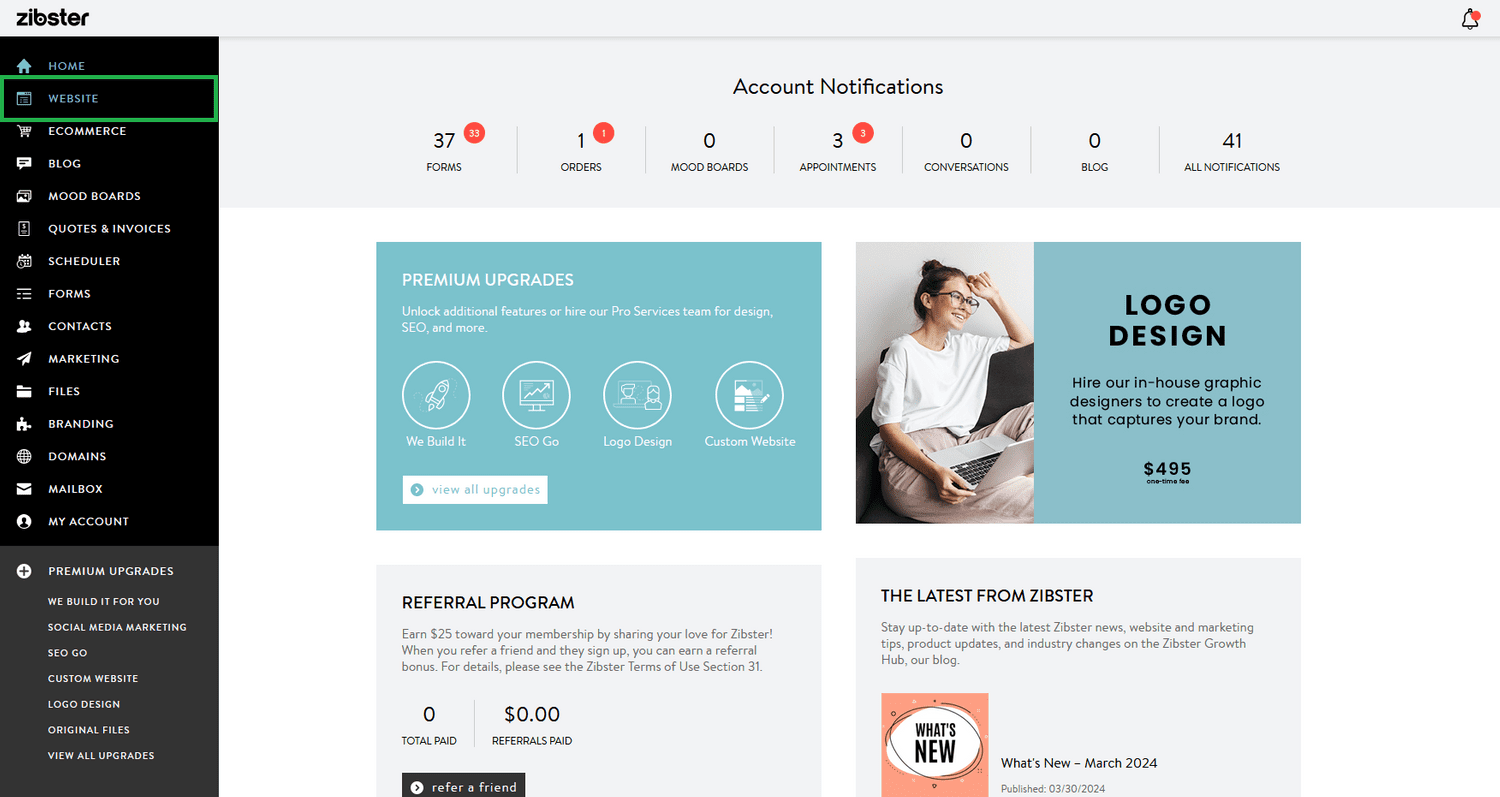
Log into your Zibster account and click WEBSITE in the left-side menu.
This opens your Website Builder, where you can choose where the Google Reviews widget will appear on your website.

STEP THREE
Open the page where you want to display your Google reviews.
If you want the reviews to appear on one specific page, add the widget to that page. If you want the reviews to appear across multiple pages, you can add the HTML Block to your website footer instead.
STEP FOUR
Add an HTML Block to the page or footer where you want the Google Reviews widget to appear.
The HTML Block is used to add third-party embed code to your Zibster website. This is where you will paste the code provided by your Google Reviews widget provider.
FINAL STEP
Paste your Google Reviews widget embed code into the HTML Block and click SAVE CHANGES.
Your updates will apply to your website automatically. Visit your live website to confirm that your Google reviews are displaying correctly.
Additional Options and Helpful Notes
Choosing Where to Display Your Reviews
You can add your Google Reviews widget to different areas of your website depending on how visible you want it to be.
Common placement options include:
-
Homepage
-
About page
-
Testimonials page
-
Contact page
-
Website footer
Adding reviews to high-traffic pages can help visitors see customer feedback while they are learning more about your business.
Using a Testimonials Page Instead
A Google Reviews widget automatically displays reviews based on the settings from your third-party provider. If you want more control over which reviews appear, you may prefer to create a testimonials page manually.
A testimonials page lets you:
-
Choose specific reviews
-
Add customer names or service types
-
Include images with testimonials
-
Control the order and layout
-
Avoid relying on a third-party widget
This option is helpful if you only want to feature selected reviews instead of automatically displaying reviews from Google.
Troubleshooting and FAQs
My reviews are not showing on my website.
Check that the full embed code was copied from your widget provider and pasted into the HTML Block. After saving your changes, refresh your live website page to confirm the widget loads.
If the reviews still do not appear, log into your widget provider account to confirm the widget is active and connected to the correct Google Business Profile.
The widget does not look the way I expected.
Widget layout, colors, review filters, and display settings are controlled by the third-party provider. Log into your widget provider account to make design changes.
If the provider gives you an updated embed code after making changes, copy the new code and paste it into the HTML Block in your Zibster Website Builder.
The widget is loading slowly.
Third-party widgets load from outside services, so performance can vary depending on the provider. If your page loads slowly after adding the widget, contact the widget provider or consider using a manually created testimonials page instead.
Can Zibster Support edit the Google Reviews widget?
Zibster Support can help you add the embed code to an HTML Block. Changes to the widget settings, design, review source, billing, or provider account must be managed through the third-party widget provider.